
Before you create a link
Linked Process Maps works with saved process maps. Guests, unsaved maps, and template previews cannot create or store links. Viewers can browse existing links and previews, while editors can add or remove links.
Links can be anchored to a task, subprocess, or call activity. If you link a plain task, BA Copilot asks you to confirm its conversion into a collapsed subprocess.
Link an activity to another process map
- Open a saved parent process map.
- Select the task, subprocess, or call activity that should open the detailed process.
- Open Links in the right sidebar.
- Choose the saved child process map.
- Review the selected activity and confirm the link. If the activity is a plain task, also confirm its conversion into a collapsed subprocess.
The parent activity receives a link badge. The relationship also appears in the Links sidebar.
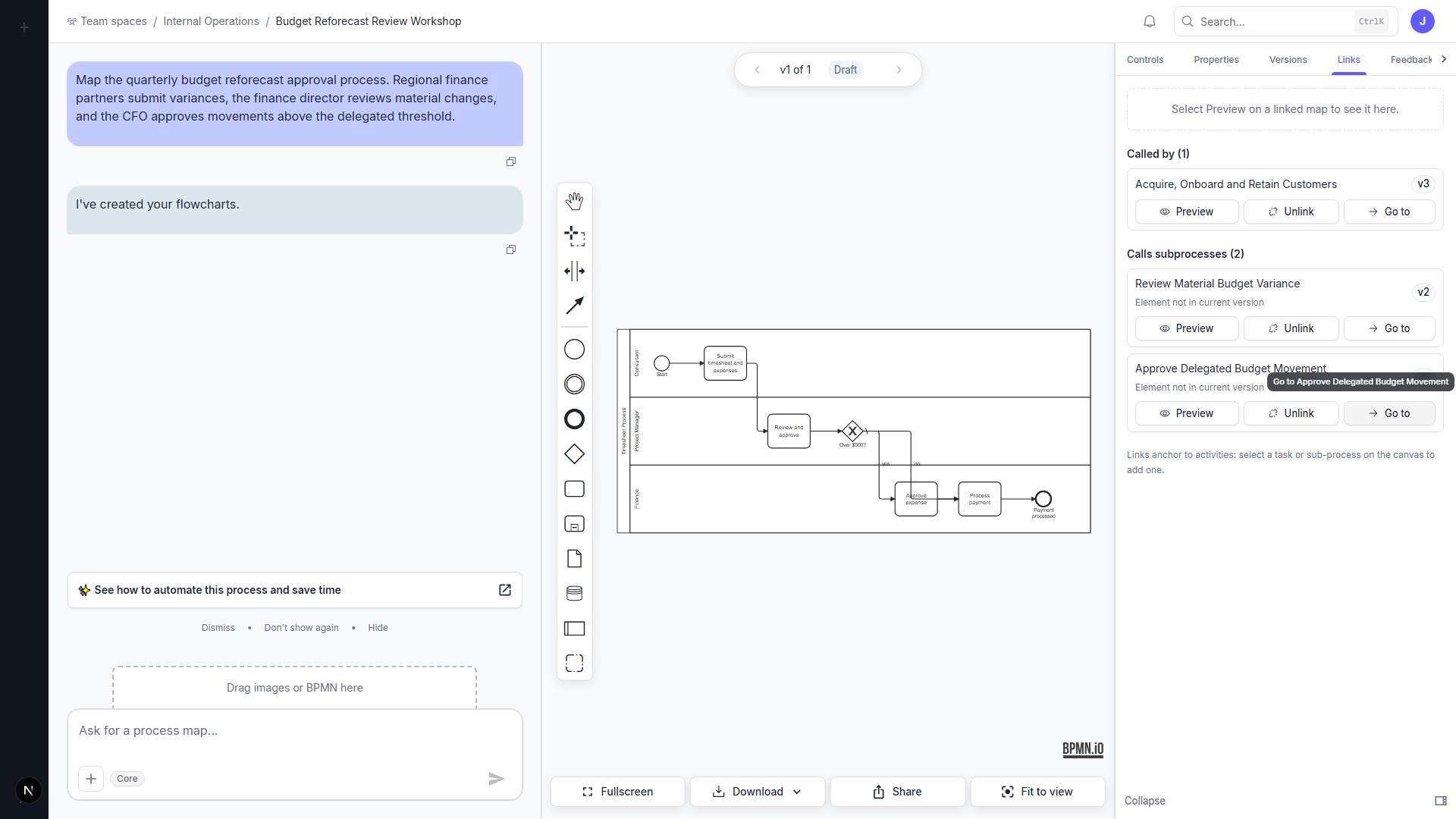
Preview and follow a link
Open Links and select Preview for the related map, or select a linked activity on the canvas. Previews load only when requested. Select Go to to open the related map.
On the child map, use Called by to see the parent relationship and return to the calling map. On a parent map, Calls subprocesses lists its child relationships.
Generate linked child maps with BA Copilot
Ask BA Copilot to create detailed child maps for suitable Level 3 activities. The standard chat follow-up can create up to three Level 4 children in one accepted step, subject to the remaining map allowance.
Review the proposed children before accepting them. Each completed child is linked back to its calling activity.
Remove a link
Open Links, select the relationship, and use the remove action. Removing the relationship does not delete either saved process map.