
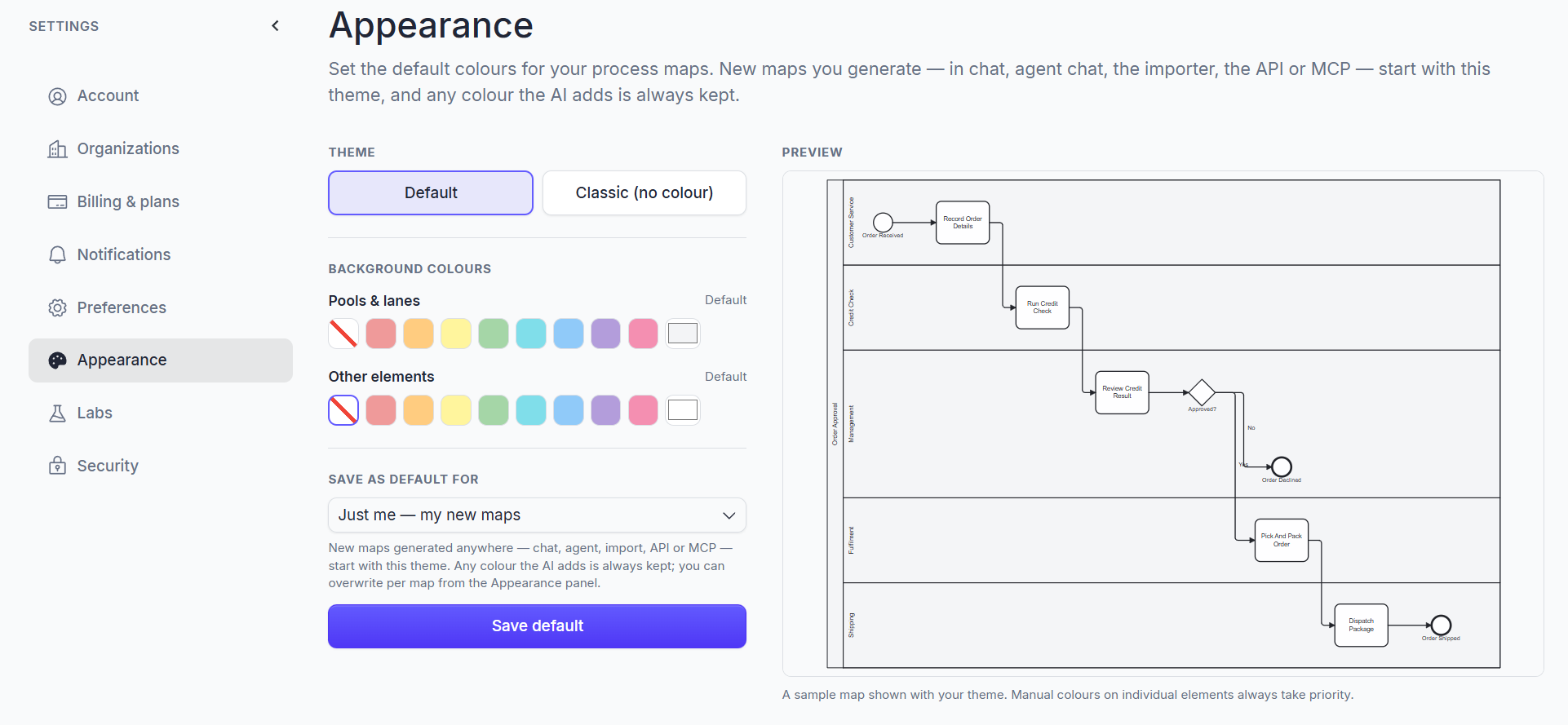
You can give every process map you generate a consistent look
Subtle background colour on pools and lanes, a different fill for tasks/events/gateways, or strip colour out entirely. The theme is baked in at generation time, so it travels with the map: exports, screenshots, published links and Visio downloads all use the same colours.
This article covers the Settings → Appearance page (where you set your default theme) and the Appearance sidebar on the editor (where you tweak a single map live).
Quick answer
| Setting | Where | What it changes |
|---|---|---|
| Default theme | Settings → Appearance | The starting colours for every new map you generate (chat, agent, importer, API, MCP). |
| Per-map appearance | The Appearance panel inside a process map | The colours on this one map. You can Undo. |
The two presets — Default and Classic
Every account starts with two built-in presets:
- Default — Subtle shading on pools and lanes (
#f3f4f6), everything else stays clean white. This is the "house style" introduced in this update. - Classic (no colour) — No theme colour at all. Reproduces exactly how maps rendered before this feature shipped, in case you preferred that.
Both presets are available on every plan, including the free trial. If you switch to Classic on the editor sidebar, BA Copilot also strips any baked theme colour from the current map so you see the original look immediately.
Setting your default theme (Settings → Appearance)
-
From the dashboard, open the avatar menu in the top-right and choose Settings.
-
Open Appearance (left rail).
-
Pick a preset, or tweak the colours below it:
- Pools & lanes — background fill on
bpmn:Participantandbpmn:Laneshapes. Set to No fill (match canvas) to skip. - Other elements — background fill on tasks, events, gateways and data elements. Set to No fill (white) to skip.
- Pools & lanes — background fill on
-
Save default for:
- Just me — my new maps — applies to maps you generate from your own account.
- Everyone in Org name — applies to maps generated by anyone in the currently selected organisation (you must be the owner).
-
Click Save default.
A live preview pane on the right shows a sample map repainted as you change colours, so you can dial in the shade you want before saving.
Customising a single map (Appearance sidebar)
Open any process map and click Appearance in the right sidebar. The panel works the same way as the Settings page but applies only to this map.
Two things are different:
- Live apply. Every change repaints the map in front of you. There's no separate Save step — the moment you change a colour, the map is updated.
- Undo. If you don't like the change, click Undo at the top of the panel to revert to the previous theme. Undo only reverts theme changes you made in this session.
If your default theme already covers what you want, you don't need to touch the sidebar — new maps inherit it automatically.
Where the theme is applied
When you generate a new map, BA Copilot bakes your saved default theme into the BPMN XML before the map first renders. This means:
- Chat & agent chat generations — start with your theme.
- Importer generations (Excel, CSV, Word, Visio) — start with your theme.
- API & MCP generations — start with your theme (it follows the account/org of the API key or MCP connection).
- Refinements — keep the colours from the version they refine; the AI doesn't repaint things you've already coloured.
When you export the map — PDF, PNG, BPMN, Visio — the export uses the same baked colours, so what you see in the editor is what arrives in the export.
Scope precedence
If you set a theme at multiple levels, the most specific one wins per map:
- Space — if a theme exists for the map's space, it's used.
- Organisation — otherwise the org-level theme is used (if set by the owner).
- User — otherwise your personal default is used.
- Built-in — otherwise the Default preset is used.
This lets a Pro org owner enforce a brand-aligned theme on every map in their org, while still letting individual users tweak per-map appearance from the sidebar.
Plan and limits
| Plan | Presets (Default / Classic) | Custom colours |
|---|---|---|
| Free trial | ✅ Apply on every map | ❌ Preview only — upgrade to save |
| Essential | ✅ Apply on every map | ❌ Preview only — upgrade to save |
| Pro | ✅ Apply on every map | ✅ Save as user / org default |
Troubleshooting
My existing maps still look the old way after I save a new default. The default applies to new maps. To recolour an existing map, open it and use the Appearance sidebar — those changes apply live.
I switched to Classic but the colours are still there. Classic strips the baked theme but leaves any manual element colours you (or the AI) added by hand. Open the affected element's properties and clear its fill to remove the manual colour too.
My export came out without the colours. Make sure you exported from a version saved after the theme was applied. If you exported an older version (via Versions → Export this version), it uses that version's baked theme, not your current setting.
My collaborators see different colours than I do. Themes are resolved per-map based on space → org → user (above). If a collaborator is in a different org or has set a different user default, the same map can render differently for them. Set the theme at the organisation level to keep everyone aligned.
The custom colours I picked weren't saved. Saving a custom (non-preset) default requires Pro. The presets save on every plan; the preview shows what custom would look like but you'll be prompted to upgrade when you click Save default.